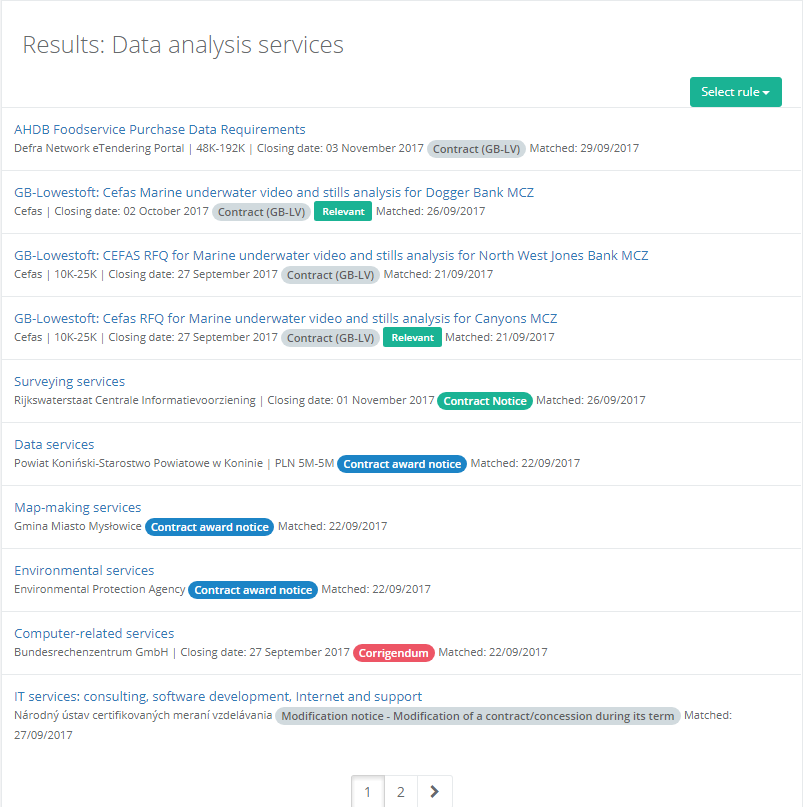
Getting your Notice Rules to deliver the right notices to your inbox can require a bit of trial and error.
To help getting it right we have introduced a new set of features that allows you to inspect the results of each rule.
To view the new features navigate to Notice -> Search and click the View Notice Rules button.
Click the View link next to one of the rules you will be able to see some metrics for the rule (highlighted in picture below).
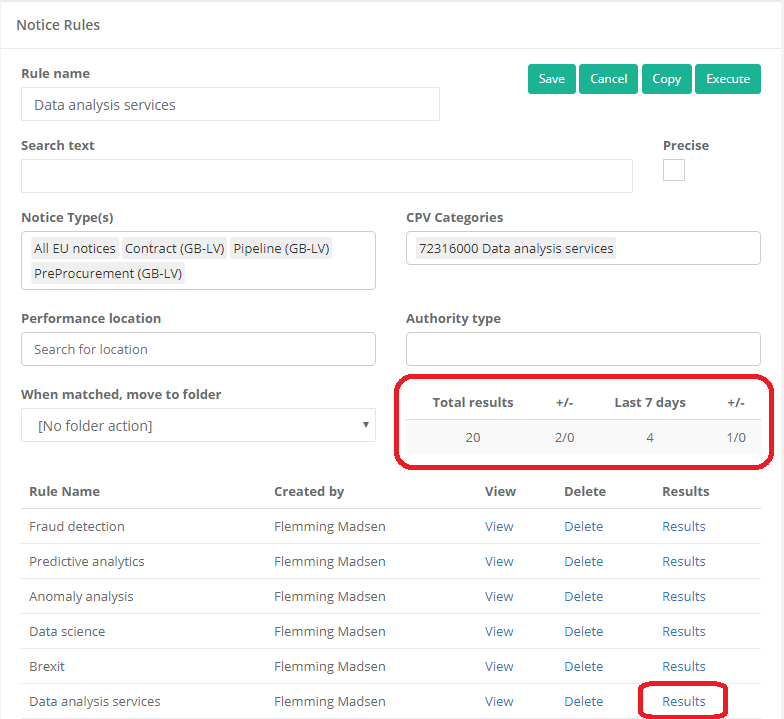
The first number is the total results the rule has delivered. The next two numbers are the number of these notices that you have given relevant/not relevant feedback.
The second set of numbers shows the similar information, but only for notices identified in the last seven days. This can be helpful if you have made changes to the rule and want to see how they are working
To see the actual notices identified by a rule, click the Results link (highlighted above).
When reviewing the results from a rule, a click on the title of the notice will display the notice on the right side of the screen. (Shown below)
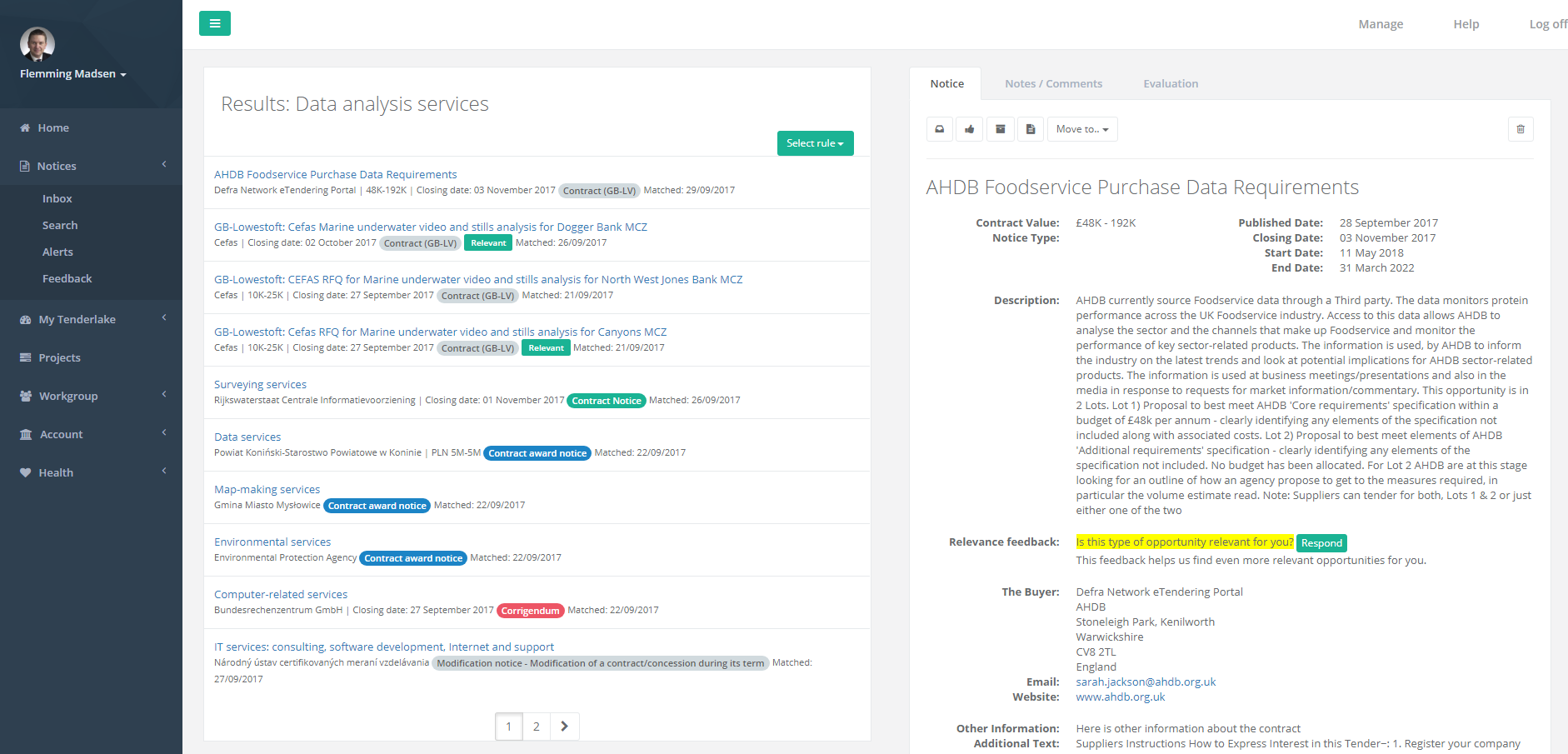
The list of notices identified from the rule contains some additional information, such as if you rated it relevant or not, the notice type as well as when it was identified (matched) by the rule.