Monitor Specific Competitors and Buyers
Use Tenderlake to monitor contracts awards to your competitors and contracts put out by existing and prospective clients.
Use Tenderlake to monitor contracts awards to your competitors and contracts put out by existing and prospective clients.
You can now use Tenderlake to monitor contracts awarded to your competitors and contracts put out by existing and prospective clients.
You can even monitor contracts put out by a defined group of clients, for example universities or the NHS - and much more.
(Read the article or see the video demonstrations at the end of the page)
Why it is important
If you want to monitor certain types of contracts from a specific buyer (or group of buyers) you must normally subscribe to all contracts of that type, using CPV codes or text search. This can lead to a large amount of irrelevant contract notices from other buyers.
With this new feature you can be laser-focused on specific buyers and competitors.
Keeping abreast with contract awards issued by specific buyers or clients, gives you a better picture of the competition and immediately identifies new competitors.
Monitoring contract awards to specific organisations is a great source of valuable competitive intelligence.
How it works
Before you can use this new feature, you will need to create one or more buyers or contractors (suppliers who have won contracts).
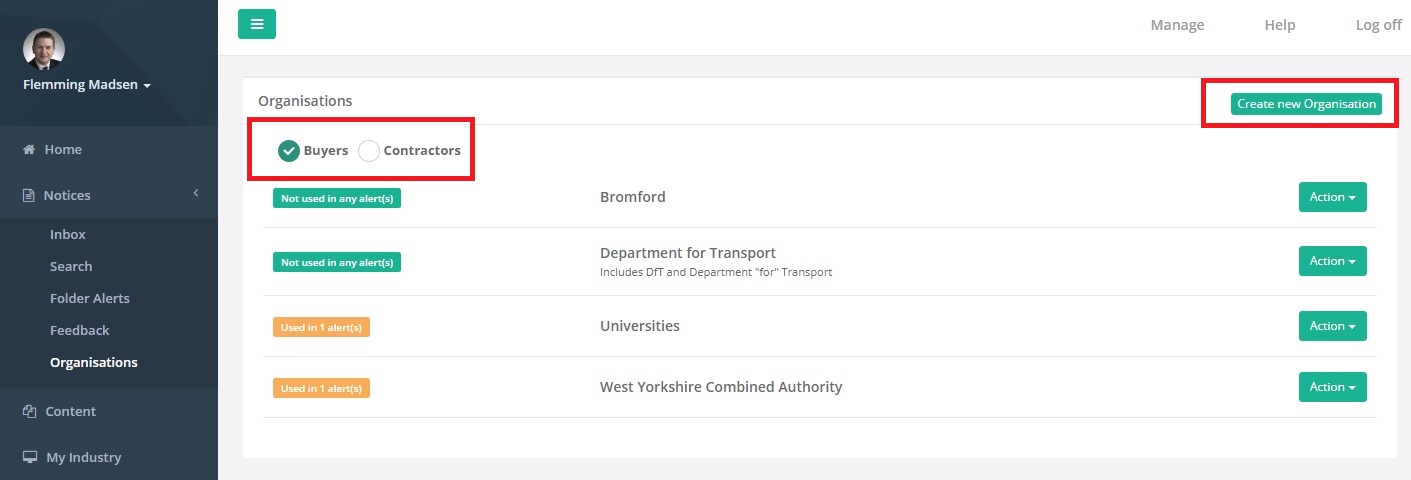
Go to Notices -> Organisations
First, select if you want to crate a buyer or a contractor. Then, click the button Create new Organisation.
In the example below, we have chosen to create a buyer.
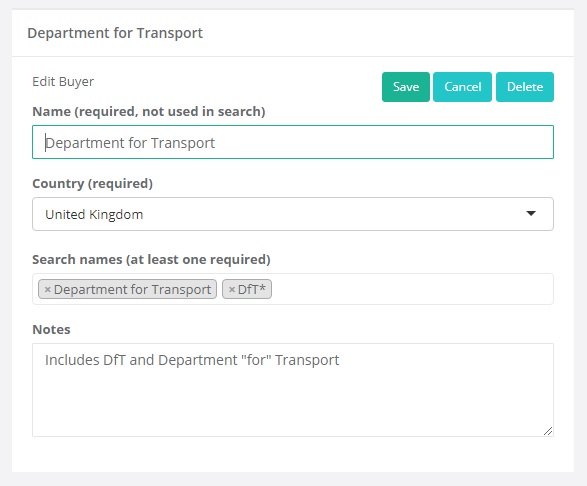
Now, enter a name for this organisation.
Important: This name is NOT used to search for the organisation but is how you select the organisation when searching and creating alerts.
Finally enter, one-by-one, the names commonly used to identify this organisation. Press enter once you have entered each name.
Note, that in this example we have entered two common names the Department for Transport uses to describe themselves when they put out contracts and announce awards: “Department for Transport” and “DfT”. The search terms are not case sensitive.
We are now ready to search for contracts and awards issued by the Department for Transport.
Go to Notices -> Search where you normally search for notices and create alerts.
The drop-down box titled Buyer / Contractor is used to specify which buyer or contractor you want to use in your search.
You can see that the list is divided into Buyers and Contractors.
Select the buyer, in this case Department for Transport.
The search can be combined with all the other search settings, so if you only want to find contracts or be alerted when Department of Transport puts out contracts for consulting or electrical work, you can specify this using a combination of CPV codes and text.
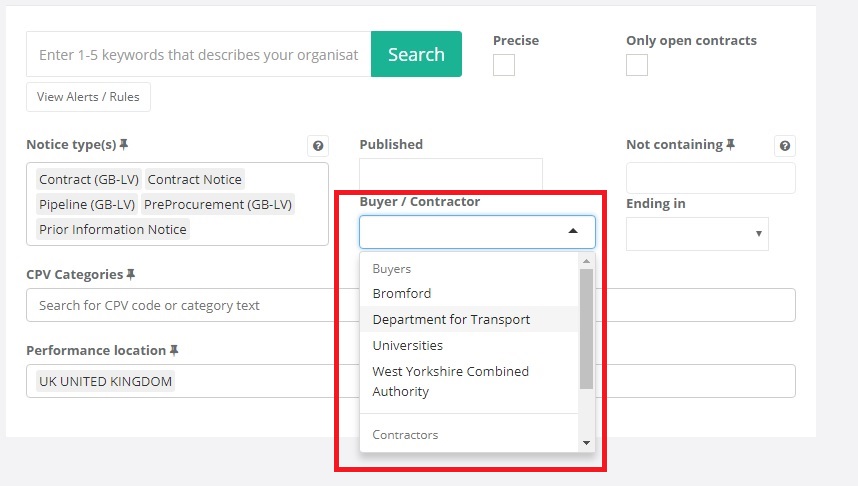
In this example, we just select Department of Transport and click the Search button.
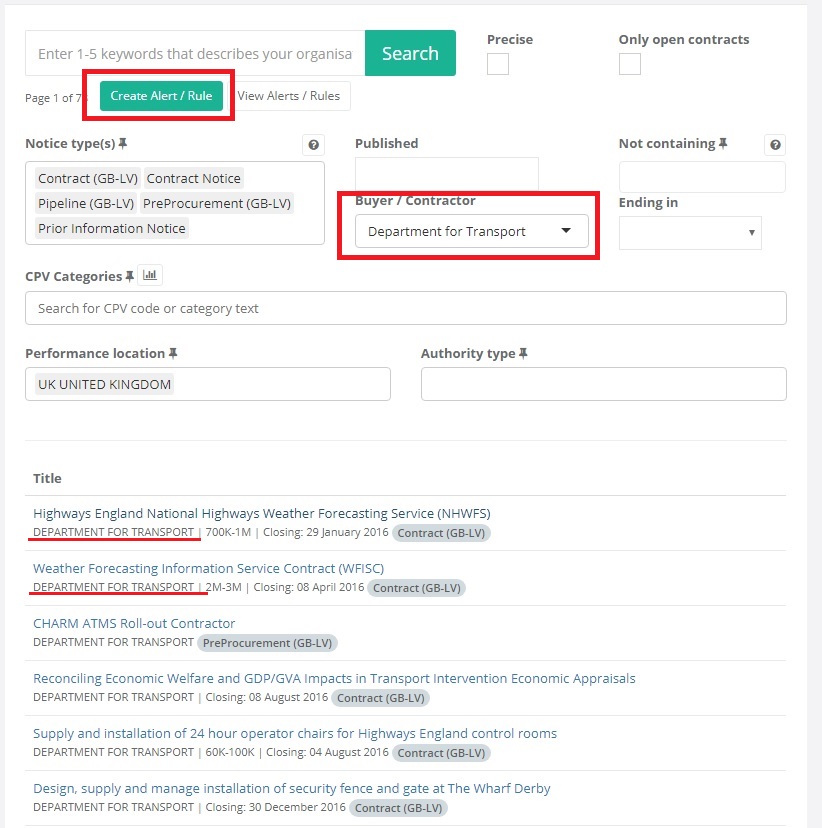
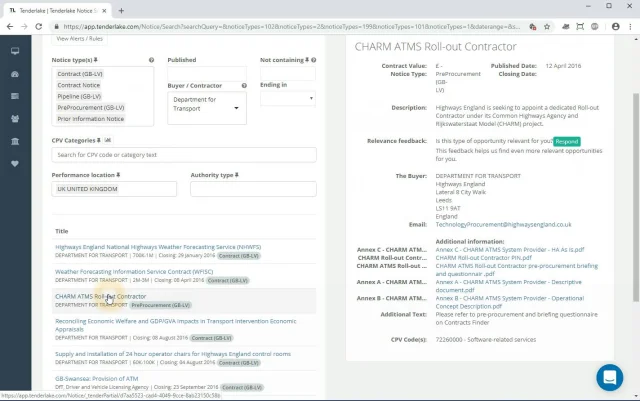
Now, the search results only contains contracts from Department for Transport.
To create an alert to get all new contracts from Department for Transport, just click the Create Alert / Rule button.
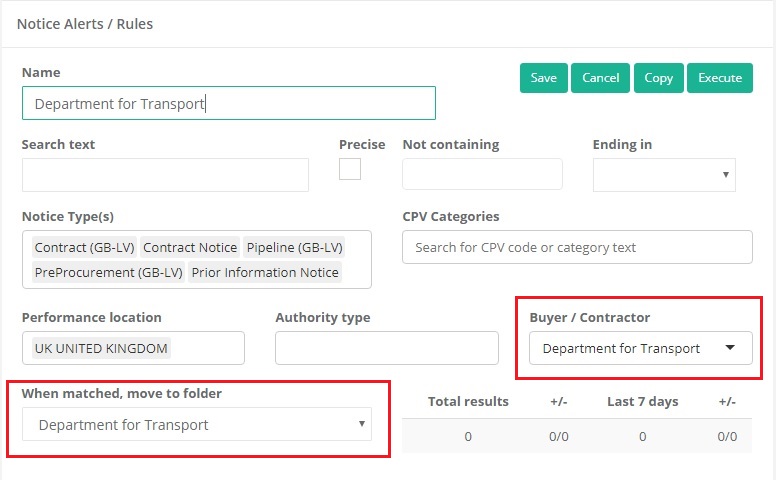
The alert shows that we have selected a Buyer / Contractor – in this case Department for Transport.
As with all alerts – it is good practice to put the alerts into their own folder. So, I have created a folder called “Department for Transport” and selected this as part of the rule (see picture below).
Remember, if you want to be notified when there is a new notice in a new folder, you must subscribe to said folder. See this blog post for an example.
Some Important Notes
Monitoring Contract Award Winners
If you want to search for, or monitor, contract awards to specific winners, then create a contractor just like we created the buyer earlier.
Then select that contractor – but also select the notice type “Contract Award Notice”.
Monitoring Groups of Buyers
There are two ways you can monitor groups of buyers.
You can either create a list of search names used by these buyers, as was shown earlier in this article where we use both the names Department for Transport and DfT.
If your buyers share a common name, like “university”, then you simply enter that as a search name and it will catch all universities that have the word “university” in their name. If you are looking for notices from NHS hospitals, you can either make a list of them as search names OR you can simply enter the search name “NHS”.
Monitoring Awards from Buyers
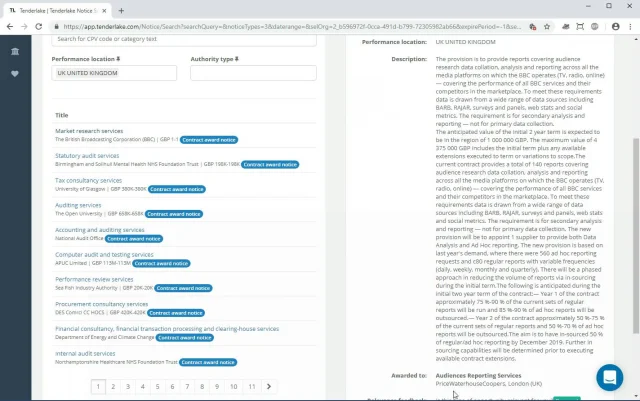
It is also possible to search (and create alerts) for awards from specified buyers.
Just select the specific buyer and the notice type “Contract Award Notice”.
Notice types
Searching for buyers works with all notice types.
Contract awards identifies awards announced under the OJEU rules (not lower value awards)
Videos
| Monitor Specific Buyers and Contractors (Part 1) | Monitor Specific Buyers and Contractors (Part 2) |
 |  |