How to create a Contract Awards Report
Step-by-step guide to creating Tenderlake Contract Awards Reports.
Step-by-step guide to creating Tenderlake Contract Awards Reports.
Learn more about how to benefit from Contract Awards Reports here
(Video walk-through at the end of the article)
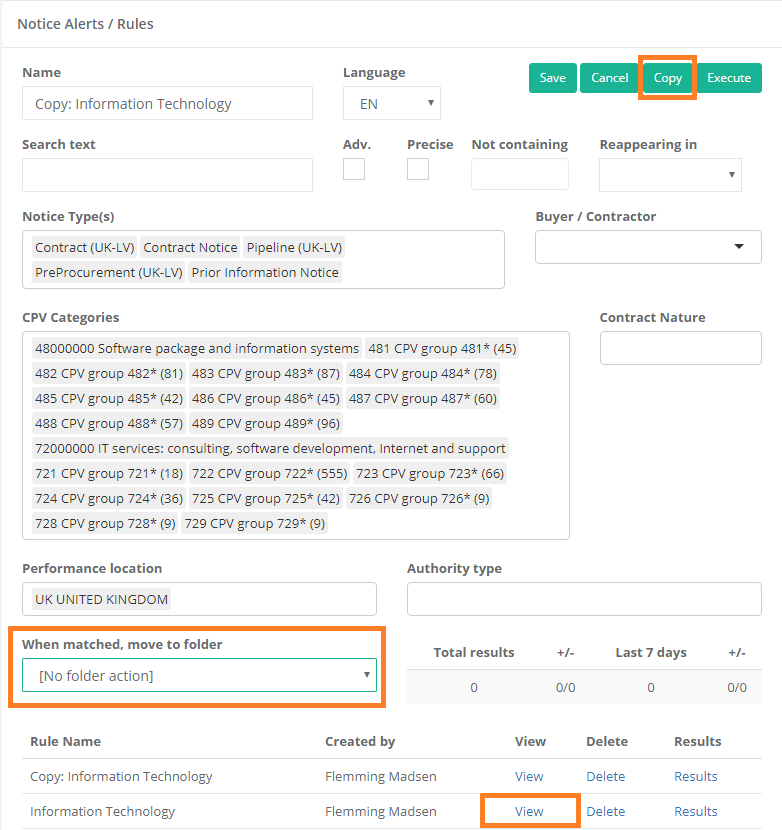
1/ Create one or more alerts that represent the target industry.
Update: Alerts no longer need to use "No Folder Action" settings. Just use any existing alert.
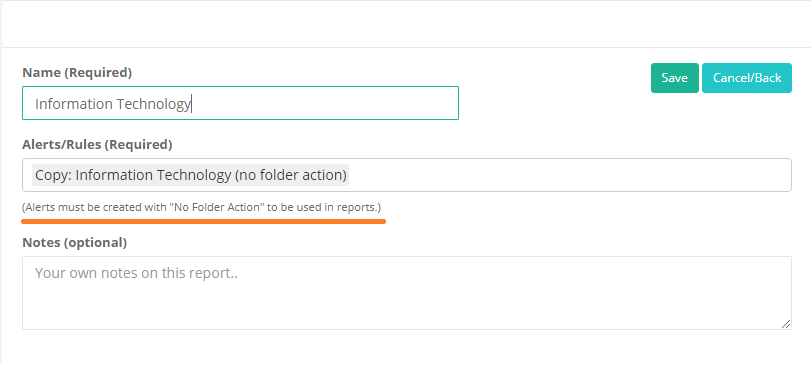
To create the actual report click Reports on the left side menu.
Then name the report and select the alerts you want to use to comprise the report.
A report can be based on more than one alert.
Once you click the Save button the initial report is generated.
Click the Cancel/Back button (or click the Reports link on the left side menu) to see the report you just created.
Click on the name of the report.
You will see that the report now exists for the current month as well as for the two prior months.
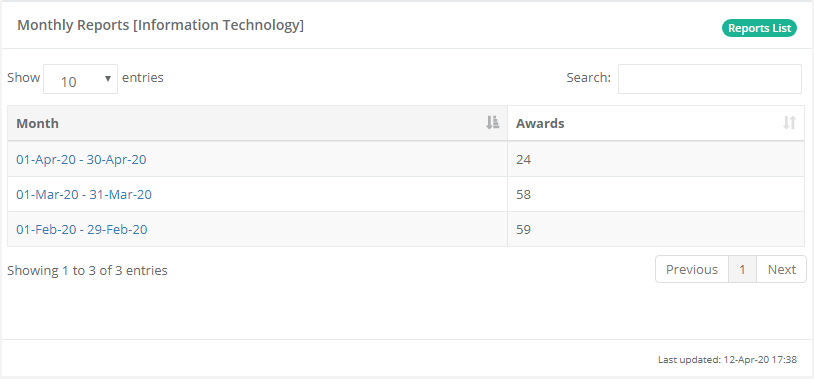
Click on a month to see the report for that month in detail.
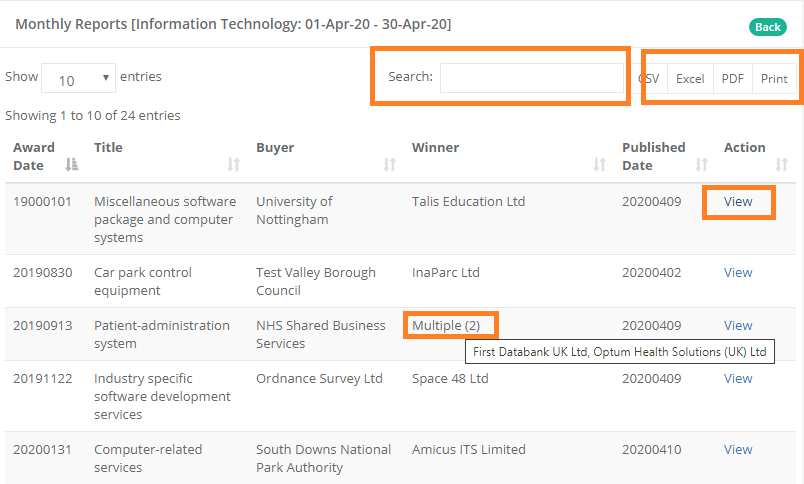
Click “View” to see the details of the award.
When there are more than one winner of the contract it says “Multiple” and indicates the number of winners. Move your mouse over “Multiple” to see the names of the winners.
You can filter the report by entering text into the search box.
You can export the full report to Excel, PDF, CSV or print it. The export includes the names “hidden” under the “multiple” label.
Please get in touch if you have any questions for would like help with creating or refining your reports.
Video walk-though below:
