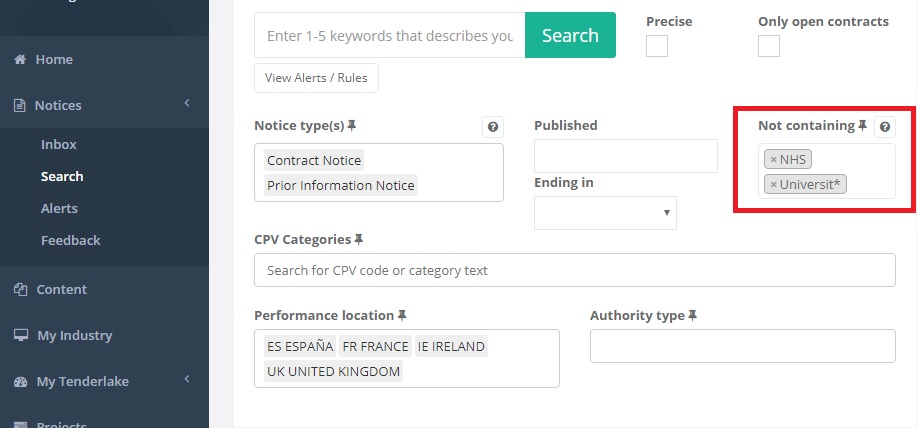
It is now possible to exclude procurement notices, that contain certain words and phrases, from your search results and your alerts.
Why it is important
Filtering out notices that contains certain words is important in order to reduce the number of irrelevant notices.
However, in other contract finding services, it is usually not possible to have excluding words or phrases if you do not also have a text search.
This means that you have not been able to use excluding words in alerts that only contains CPV Codes.
How it works
Simply add a word or phrase into the new Not containing box and press the Enter button on your keyboard.
Repeat the process for any number of words or phrases you want to exclude.
The words entered are taken specifically, so entering the word School does NOT exclude notices that only contains the plural version (Schools). To exclude any variations of a word, terminate the common part of the word with a *.
To exclude School, Schools, Schooling, etc., simply enter the word School* and press the Enter button.
If you have a list of words or phrases you often exclude you can save them as a default by clicking the little pin-icon next to Not containing.
To remove any saved defaults, just clear the text-box and click the pin-icon (save defaults) again.
Tenderlake does not use case-sensitive search, so it doesn’t matter if you use upper or lower-case letters.