Clearly See if a Notice Has Been Read – By You or a Team Member
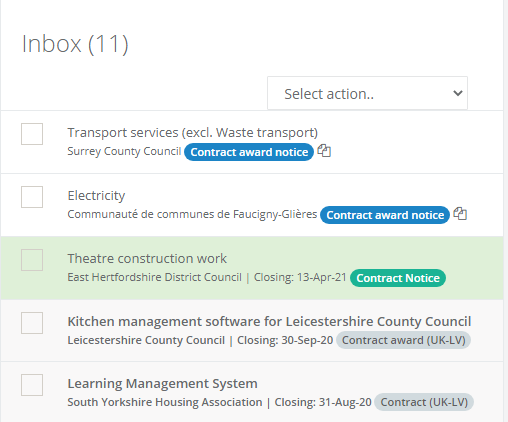
You can now clearly see if a notice has been read by you, or by a team member.
You can now clearly see if a notice has been read by you, or by a team member.
You can now
See Which Notices You Haven’t Read
Unread notices are now clearly indicated by bolder font.
See Who in Your Team Has Read a Notice
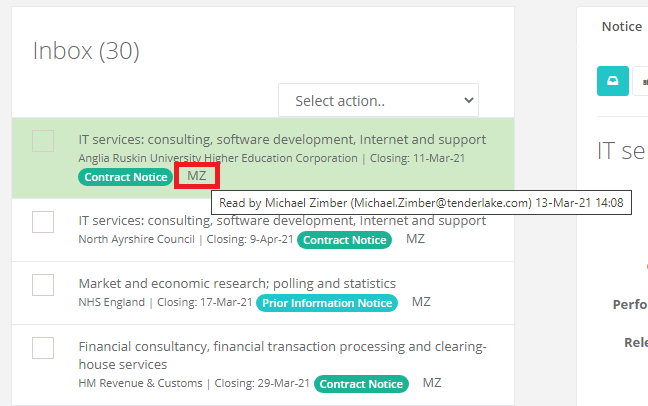
If a notice has been read by a team member, the readers initials are highlighted on the notice.
If you move the mouse pointer to the initials you can see the full name, email address of who has read the notice and what time it was read.
Now you never have to be in doubt about if a notice has been seen by a team member.
If you prefer to not see who has read a notice, you can turn off this indicator in your settings. Just click on your name in the top left corner of the screen, select Settings, toggle Show Named Reads to No and click the Save button.
Filter a Folder So it Only Shows Unread Notices
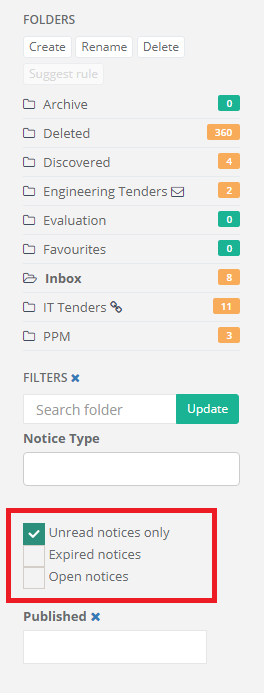
To only show the unread notices in a folder, simply click the checkbox Unread notices only (see below).
Uncheck the box to show all notices again.
Folders, where all notices have been read by you, display the 0 (unread) on a green background. This makes it quick and easy to see which folders need attention.
See How Many Unread Notices There are in a Folder
The number next to each folder (green background) now indicates how many notices are unread (by you) in a folder.
Set All Notices in a Folder as Read by You
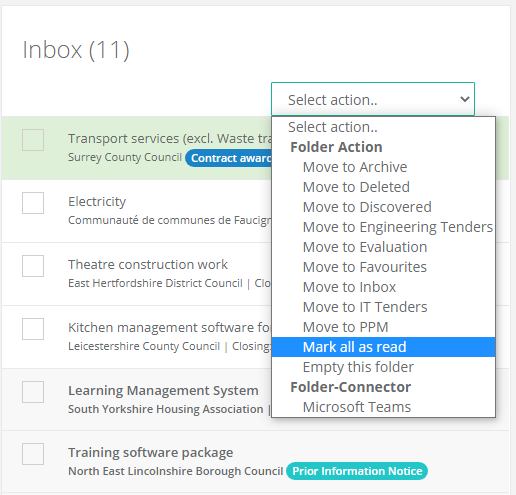
To quickly mark all notices in a folder as ready by you, simply select Mark all as read as shown below.
Please note that we only register a notice as having been read when the notice is read inside the Tenderlake web app (as shown in the examples here).
If a notice is read by clicking the link in the daily email or from a Microsoft Teams/Slack channel, the notice is not marked as read.