Efficient Distribution of Procurement Notices to Internal Stakeholders
With Tenderlake Distribution Lists you can automatically distribute procurement notices to stakeholders using email lists.
With Tenderlake Distribution Lists you can automatically distribute procurement notices to stakeholders using email lists.
Keeping a growing group of stakeholders up to date with procurement opportunities is normally a lot of work.
But with Tenderlake’s Distribution Lists, it can easily be automated.
One way of automating the distribution, is to connect a Tenderlake folder to Microsoft Teams.
However, if your stakeholders prefer to receive the information via email, Tenderlake Distribution Lists (TDLs) is the best solution.
With TDLs you can connect a list of emails to a Tenderlake folder.
Any notices that are moved into this folder are sent to the email list.
Notices can be moved into the folder automatically using a search and/or they can be added manually to the folder.
Depending on your settings, the email containing the notices can be sent automatically to the email list, or it can be sent when you trigger it manually.
The manual option is handy if you want to manually inspect the notices before they are sent out to the members of the email list.
The automatic sending option allows you to create a fully automatic pipeline, where procurement notices are added to a folder as the result of a daily alert and then automatically distributed to members of your email list.
The members of your email lists do not have to have a login to Tenderlake, but they do need to be internal to your organisation.
To distribute procurement notices from Tenderlake to an email distribution list follow the steps below:
Create a Distribution List
Navigate to Distribution -> Email Lists and click the button “Create new Email List”.
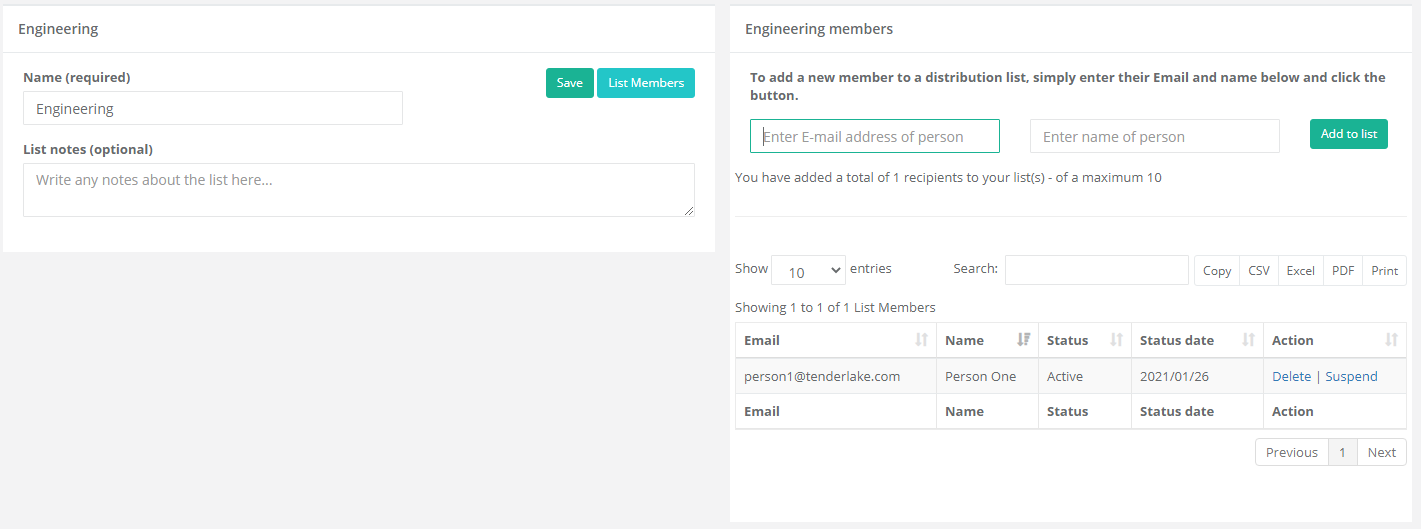
Name the email list and click the Save button.
Now, add recipients to the email list, one at a time.
Connect a Folder to a Email List(s)
Navigate to Distribution -> Folder Settings.
Select an existing folder you want to distribute notices to the email list from. (This can be a folder that is already connected to a Microsoft Teams channel)
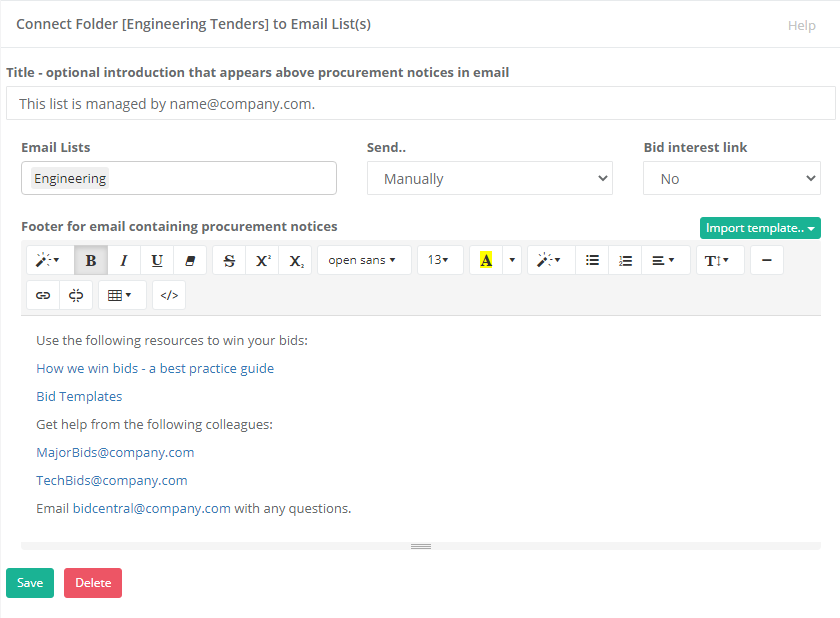
Enter a text to appear the top of each distributed email. This text should include information on who is managing this list and how to get in touch with them, for example “This list is managed by name@company.com – get in touch if you plan to bid or have feedback”.
Select at least one email list.
Set the Send.. option to either “Manually” or “Automatically”.
If set to Manually you must click a button (see later) to trigger the sending. If set to Automatically, the sending is done automatically every weekday morning.
In the Bid interest link setting you can set if you want to include a link where the recipients can indicate their interest in bidding for a procurement. (More about Bid Interest Coordination)
In the Footer section you can create a rich-text footer that is included in every email to your email list containing procurement notices.
Use the footer to link to further bid resources.
You can create footer templates under Distribution -> Templates. This way, you can simply import the relevant template when you are configuring the distribution of notices from a folder.
Click the Save button to save your settings.
Navigate to Notices -> Inbox.
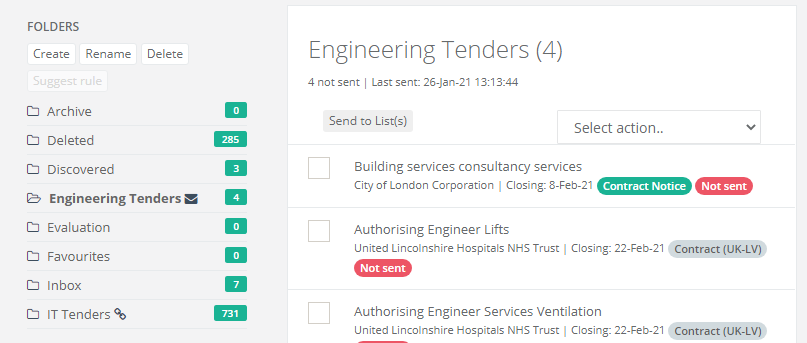
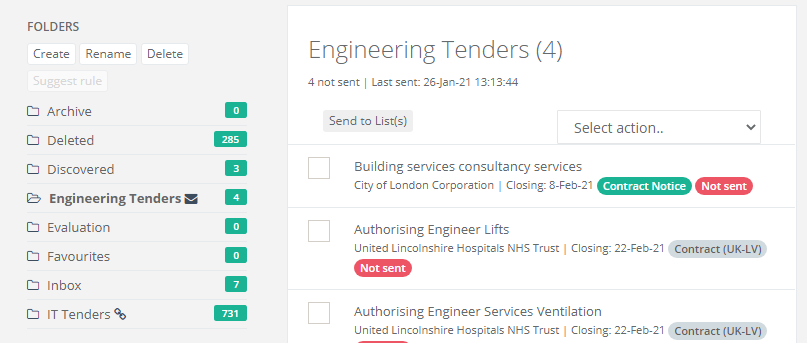
Observe that there is now an envelope icon next to the folder you just connected to an email list. When the envelope icon is black/filled, it means there are unsent notices in the folder.
This can be observed by moving a procurement notice into the folder from one of the other folders or from a search.
Connect a Search to the Folder
Navigate to Notices -> Search.
If you want to connect an existing saved search to the folder, click the View Alerts/Rules button, select the search by clicking the “View” link next to the search. Then set the relevant folder name under “When matched, move to folder” – and click the Save button.
Alternatively, create a new search and save it with the relevant folder selected.
Trigger a Sending of Notices to Email Lists
You can trigger a sending of notices to your email list, even if the list is set to Automatically send notices.
To trigger a sending, simply navigate to the relevant folder and click the “Send to List(s)" button.
Please get in touch of you have any questions about Tenderlake Distribution Lists.