How to Get Procurement Notices into Microsoft Teams
A step-by-step guide to get public contracts, tenders and other procurement notices into Microsoft Teams
A step-by-step guide to get public contracts, tenders and other procurement notices into Microsoft Teams
Please Note: This page is a legacy page and does not describe the current method. Click here to Learn How to Connect Tenderlake to Microsoft Teams using Workflows
You can now get tenders and other procurement notices directly from Tenderlake into Microsoft Teams.
(Update: You can now fully automate the process of inserting procurement notices from Tenderlake into Microsoft Teams - learn more here)
Tenderlake now integrates with Microsoft Teams to make it easier to collaborate around all aspects of finding, evaluating, and winning public contracts.
To send procurement notices from Tenderlake to Microsoft Teams, you create a webhook (a special link) for the Teams channel you want to send the notices to – and then add that webhook to Tenderlake.
It’s easy to do – just follow the step-by-step guide below.
1/
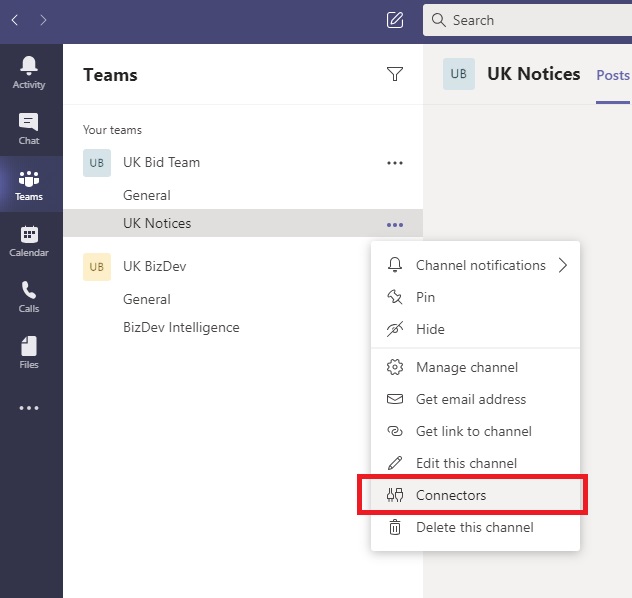
In Microsoft Teams, right-click on the channel you want to send notices to.
A menu will appear, and you select “Connectors”.
2/
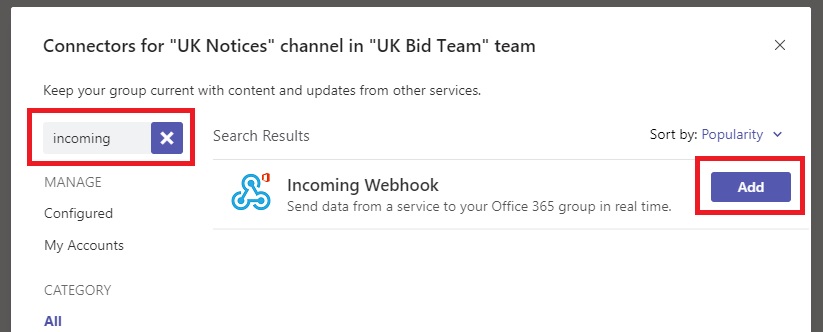
A pop-up window will appear.
Start typing “incoming” in the search box (highlighted below) until you see the “Incomming Webhook”.
Click on the Add-button to add a webhook to this channel.
3/
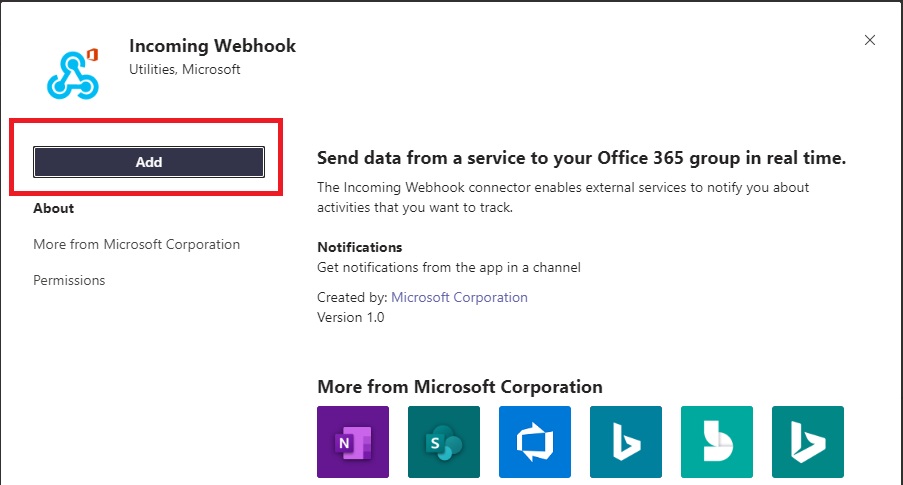
Confirm you want to add the webhook to this channel by clicking the Add-button (see below)
4/
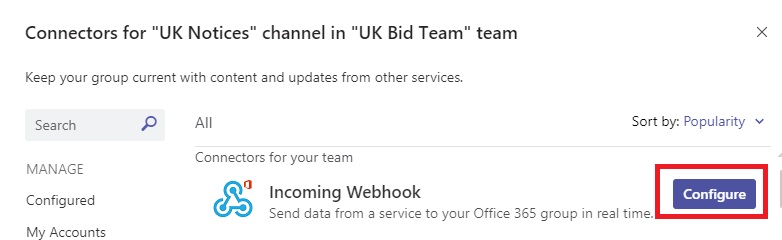
Once the Webhook/Connector appears, click the Configure-button
5/
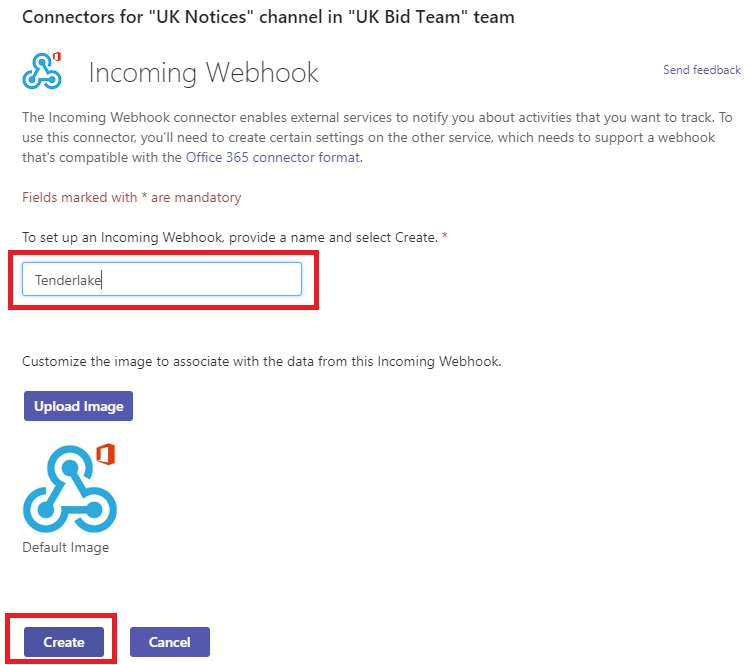
Name the webhook “Tenderlake” and click the Create-button (see below).
6/
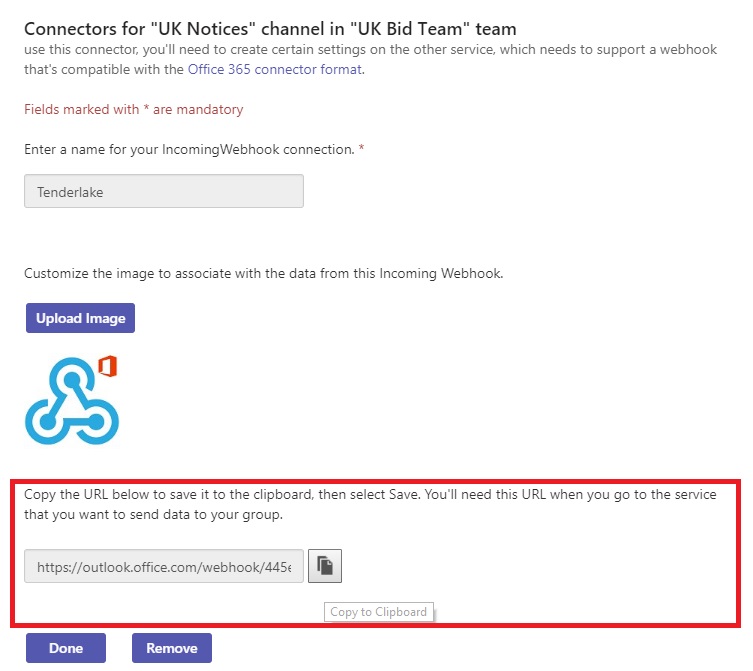
After a short time, the URL (link) of the webhook will appear.
Click on the “Copy to Clipboard” button to copy the link.
You can save the link temporarily in a Windows Notepad file or somewhere so you don’t lose it.&
7/
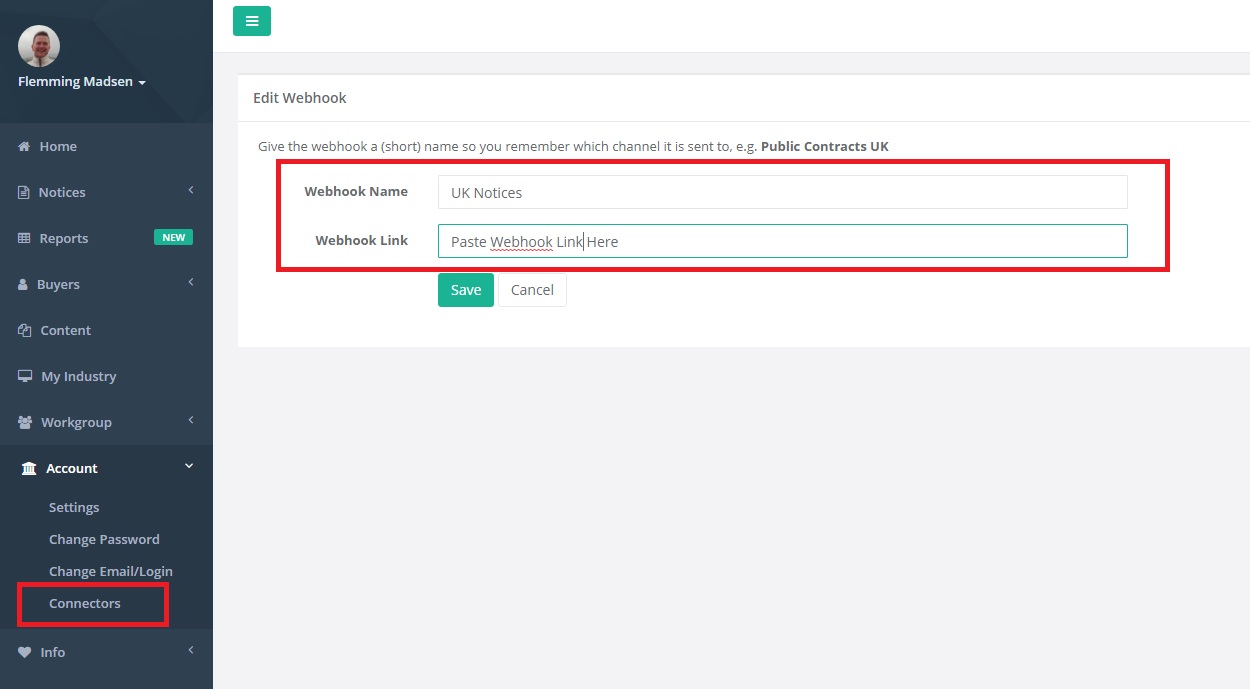
Now, login to Tenderlake and click Distribution -> Connectors. (Location different than shown in the picture below)
Here you paste the webhook link and give the webhook a name.
A good name is the name of the Channel.
(You can change the name later if you want.)
8/
Now you are ready to post your notices to the channel.
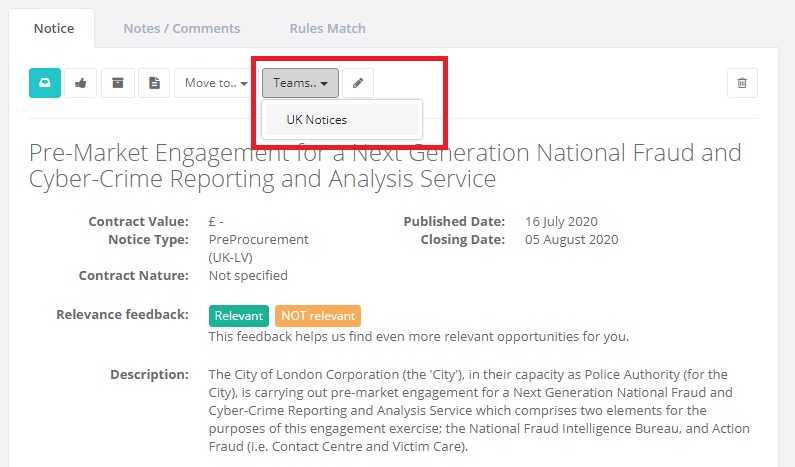
Every time you view a notice, there is now a “Teams..” button, which shows the channels you can post the notice to.
Try it out and post a notice to your channel.
9/
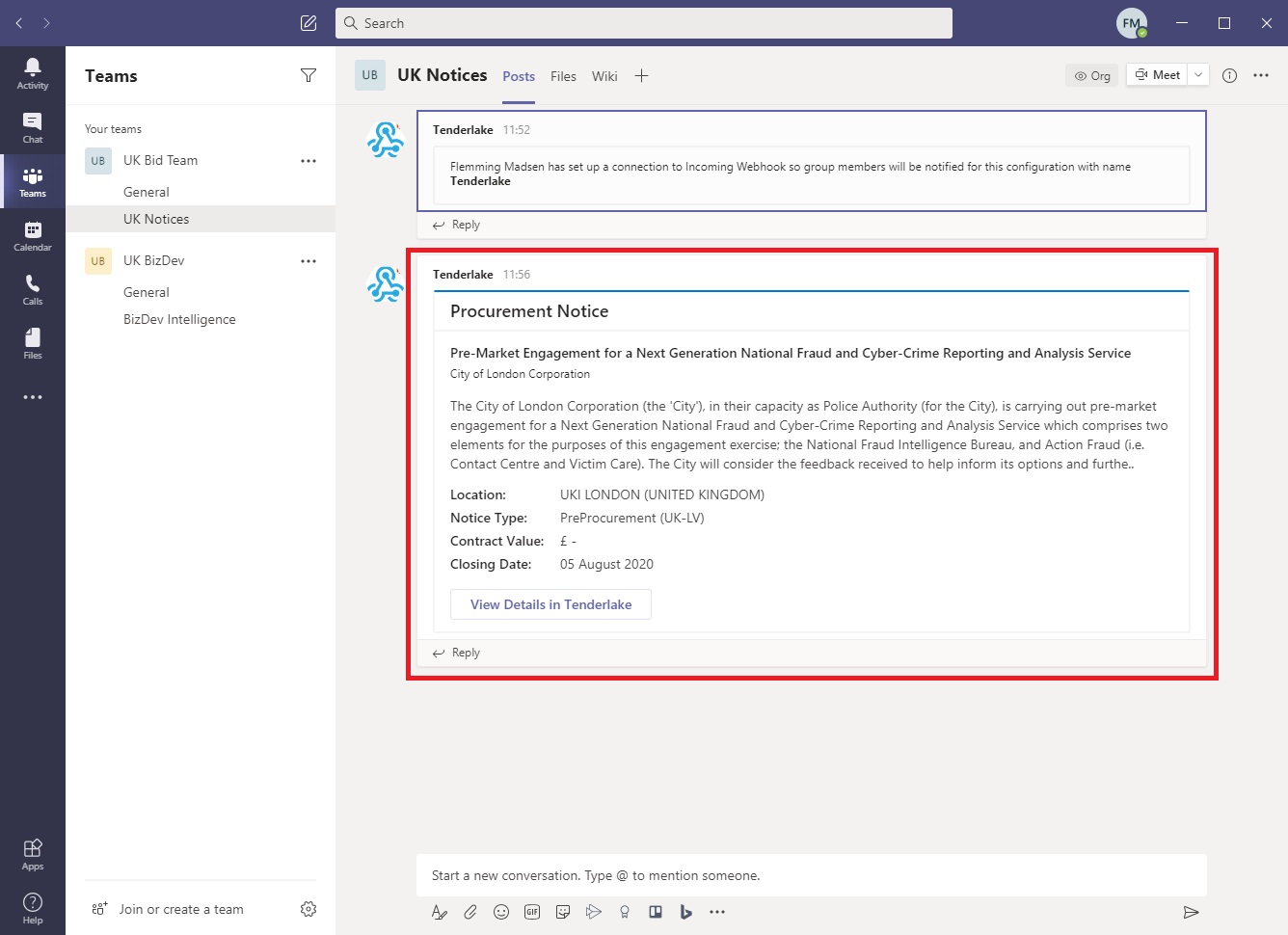
The notice now appears in the channel.
It contains the basic information of the notice, and the full details can be viewed by clicking the button “View Details in Tenderlake”.
Please get in touch with any feedback or questions you may have regarding this feature.