Automatic Distribution of Tenders to Microsoft Teams – a Step-by-Step Guide
A step-by-step guide to connecting Tenderlake folders to Microsoft Teams channels.
A step-by-step guide to connecting Tenderlake folders to Microsoft Teams channels.
This guide walks you through the process of connecting Tenderlake folders to channels in Microsoft Teams.
Once a Tenderlake folder is connected to a Microsoft Teams channel, any notice that arrives in said folder as the result of a Tenderlake alert, is automatically inserted into the connected Microsoft Teams channel(s).
You can learn more about the background for this feature here.
1/
Create connectors to one or more channels in Microsoft Teams.
This blog post walks you through the process.
2/
Go to Notices - > Inbox and create a folder to contain all the procurement notices you want to send to the channel.
In this example we call the folder Business Unit A.
3/
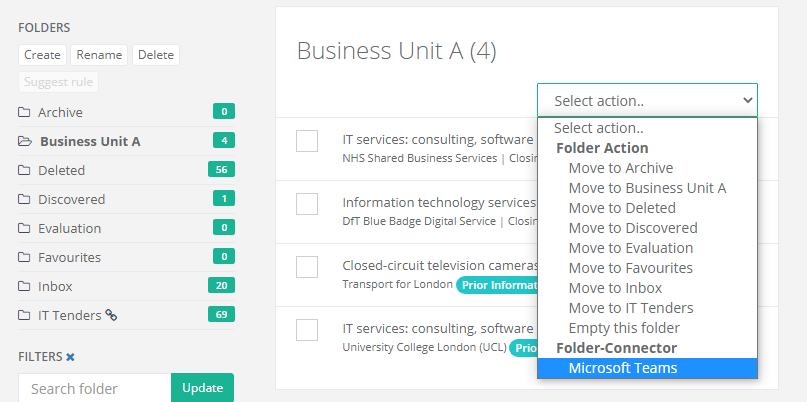
Click the Select action.. dropdown and select Microsoft Teams under Folder-Connector.
4/
Under Connectors you select the connector representing the Microsoft Teams channel you want to deliver procurement notices to.
If you want to deliver the same procurement notices to more than one channel, you can select more than one connector.
Under Teams Card Title, you should enter a short description to inform members of the Microsoft Teams channel who to contact with feedback, questions, or requests.
Click save to create the connection between this folder and the Microsoft Teams channel.
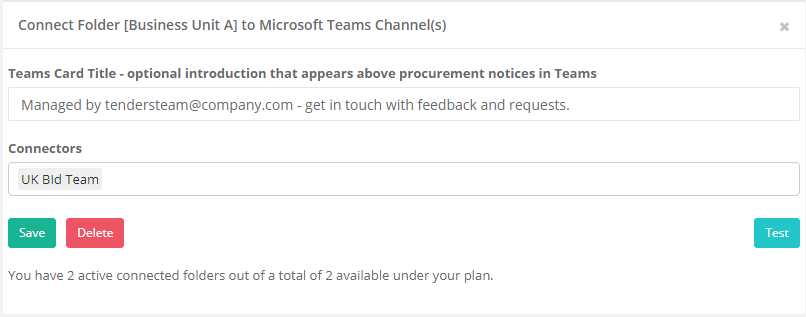
You can use the Test button to send a handful of notices from the folder into the connected Teams channel(s).
5/
To automate the deliver of notices into the folder, configure an alert to send its results into the folder by selecting the destination folder in the Notice Alert and click Save.
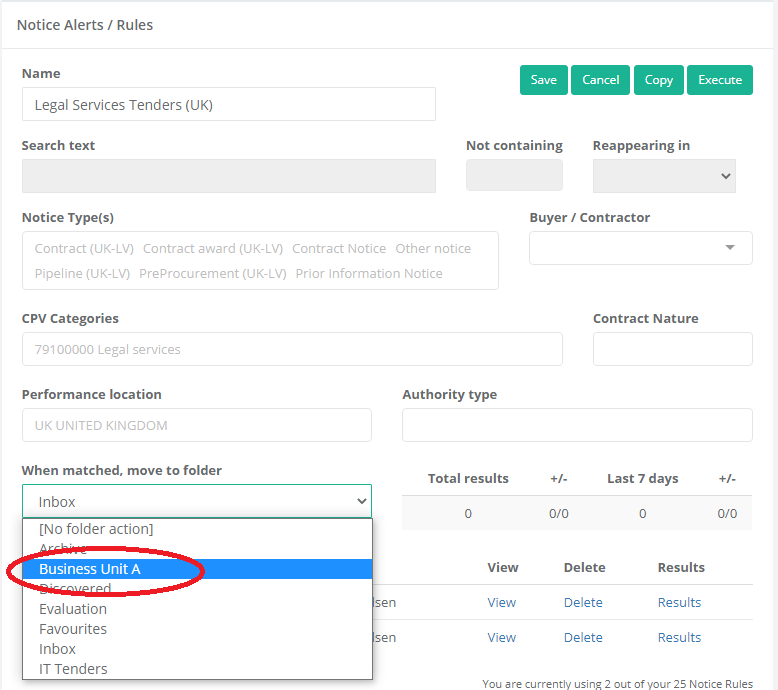
You can pipe results from multiple searches into the same folder. This is often a better idea than to create very complex searches.
That’s all!
Every time a new procurement notice is matched with a search, it is delivered into the folder and thereby into the Teams channel(s).
Just get in touch if you have any questions whatsoever or would like help setting up your first integrations between Tenderlake and Microsoft Teams.